
Quick Summary
Complete step-by-step guide for Sewayojan portal registration online rojgar 2026. Register on sewayojan.up.nic.in, documents needed, Aadhaar OTP, login, and job search process explained.
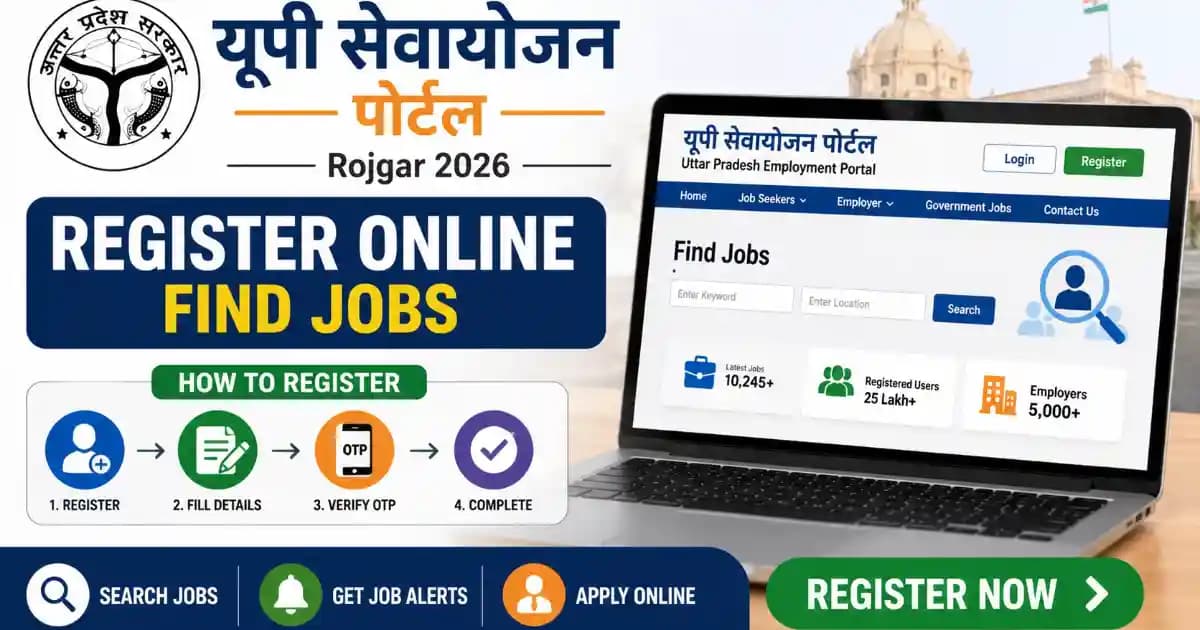
Sewayojan portal registration online rojgar is the first and mandatory step for every UP job seeker who wants to apply for government jobs, outsourced posts, private vacancies, or Rojgar Mela through the Uttar Pradesh government's official employment platform. Without a Sewayojan registration, you cannot apply for any vacancy on sewayojan.up.nic.in — and registration is 100% free. This guide walks you through every step of the registration process on mobile and desktop, with the exact buttons, fields, and document specs you will need on the portal right now.
Sewayojan Portal Registration 2026 – What is It & Why You Need It
Sewayojan Portal (sewayojan.up.nic.in) is the official online employment platform of the Uttar Pradesh government, run by the UP Department of Employment and Training. It connects job seekers with government jobs, outsourced (contractual) posts, private sector vacancies, and district-level Rojgar Melas (employment fairs) — all in one place, completely free. Once you register, you get a unique Employment Registration Number that employers and government departments use to identify and contact you. Without this number, your job application cannot be submitted on the portal for any listed vacancy — including major recruitments like UPSRTC Conductor 2026 (1,650+ posts) that are now exclusively routed through this portal.
Sewayojan Portal Registration 2026 – Documents You Need Before You Start
Keep all of these ready on your phone or computer before you open the portal. The Sewayojan registration form times out if you leave mid-way to find a document — especially on mobile networks.
| Document / Item | Specification | Notes |
|---|---|---|
| Aadhaar Card | 12-digit Aadhaar number | Your mobile number must be linked to Aadhaar — OTP for e-KYC is sent only to the Aadhaar-registered number. If not linked, visit nearest Aadhaar Seva Kendra first. |
| Active Mobile Number (Aadhaar-linked) | Must receive SMS — no DND block | One mobile number = one Sewayojan account. Use your own number, not a family member's. All future job alerts and Rojgar Mela SMS will come here. |
| Email ID | Any active email address | Used for notifications and account recovery. Use a personal email you check regularly — not a shared one. |
| Passport Size Photo | JPG/JPEG format, white background, max 50 KB, min 200×200 pixels | This is the most common upload error. If your photo is larger than 50 KB, compress it free at iloveimg.com before opening the portal. Do not use PNG. |
| Class 10 / Matriculation Marksheet | Scanned copy or clear photo — PDF or JPG | Required for educational details entry. Name and date of birth must exactly match your Aadhaar — even one spelling difference causes Aadhaar verification failure. |
| Highest Qualification Marksheet | Scanned copy — PDF or JPG | Enter exact percentage or CGPA from this certificate in the educational information section. Employers filter candidates by qualification. |
| Income Certificate | State government issued — if applying for Berojgari Bhatta | Required only for Berojgari Bhatta (Unemployment Allowance) scheme — not mandatory for basic Jobseeker registration. |
| User ID & Password (to create) | Create during registration — note it down immediately | You choose your own User ID and Password during the form. Write these down before submitting — the portal will not send them on SMS unless you use Forgot Password. |
Source: UP Sewayojan official portal (sewayojan.up.nic.in) registration requirements and Directorate of Employment, UP guidance. Data verified as of June 2026.
Sewayojan Portal Registration Online Rojgar 2026 – Step-by-Step Process
Follow these steps in order without closing the browser tab. The entire process takes 10–15 minutes on a stable 4G connection. On a slow 2G connection, use Chrome browser in desktop mode.
▶ सेवायोजन पोर्टल पर रजिस्ट्रेशन कैसे करें | Sewayojan Portal Par Registration Kaise Kare | Rojgar Sangam — YouTube
Caption: Step-by-step video showing the complete Sewayojan registration process on sewayojan.up.nic.in — from opening the Jobseeker Sign Up form to entering Aadhaar OTP, uploading photo, completing profile, and getting your Employment Registration Number. Watch in full before starting, then follow the written steps below alongside the portal.
- Open the Official Sewayojan Portal: Go to sewayojan.up.nic.in on any browser. On mobile, use Chrome → tap the three-dot menu → tick "Desktop site" for the best experience. The homepage will show two main buttons: "Jobseeker" and "Employer". Since you are registering as a job seeker, look for the "Are you a Jobseeker? Sign Up" link on the homepage banner or click the "Jobseeker" button. This opens the Jobseeker registration form.
- Fill the Registration Form – Basic Details: The registration form will ask for: your full name (exactly as on Aadhaar), date of birth (DD/MM/YYYY format), gender, mobile number, email ID, and your chosen user ID and password. Enter all fields carefully. Your chosen User ID must be unique — if it is already taken, the portal will prompt you to try another. Password must be at least 8 characters with a mix of letters and numbers. Write down your User ID and Password before moving forward.
- Enter Your Aadhaar Number and Verify: Scroll down to the Aadhaar section. Enter your 12-digit Aadhaar number. Enter the Captcha Code shown on screen. Click "Verify Aadhar No." button. The portal will send an OTP to the mobile number registered with your Aadhaar — not necessarily the number you entered in the form above. Enter the 6-digit OTP in the box that appears. Click "Submit OTP". If OTP does not arrive within 3 minutes, wait — do not click Resend OTP more than once, as multiple requests can temporarily block OTP delivery for 24 hours.
- Tick the Agreement Box and Click Submit: After OTP verification, scroll to the bottom of the form. Read the declaration statement. Tick the checkbox next to "I agree" or "Declaration". Enter the captcha code shown. Click "Submit". Your basic account is now created. The portal will show a confirmation screen with your User ID. A confirmation SMS is also sent to your registered mobile number. This is your Sewayojan account — now log in to complete your profile.
- Log In to Your Account: Go back to the Sewayojan homepage. Click "Login". Select user type: "Jobseeker". Enter your User ID, Password, and the Captcha code shown. Click "Submit". Your personal dashboard will open. This dashboard shows your profile completion percentage, job listings, and Rojgar Mela notifications. A profile that is less than 100% complete will appear lower in employer search results.
- Fill Personal Details Section: Inside your dashboard, click "Personal Details" or "Update Profile". Enter your full address including district, tehsil, and pin code. Select your religion, category (General / OBC / SC / ST / EWS), and marital status. Enter your father's name and mother's name. Click "Save" after completing this section. Do not skip any field marked with an asterisk (*) — those are mandatory.
- Upload Your Passport Size Photo: In your dashboard, go to the "Photo Upload" section. Click "Choose File" and select your photo from your device. Accepted format: JPG/JPEG only. Maximum size: 50 KB. Minimum dimensions: 200×200 pixels. White background is required. If your photo file is above 50 KB, compress it at iloveimg.com (free, no login needed) before uploading. After selecting the file, click "Upload". A preview of your photo will appear — confirm it is correct before saving.
- Fill Educational Information: Go to the "Educational Information" section in your dashboard. Add your qualifications starting from the highest. For each qualification, enter: level (10th / 12th / Graduation / Post Graduation / Diploma / ITI), board or university name, passing year, subjects, and percentage or CGPA. Click "Add" for each qualification and then "Save". Add all qualifications you hold — employers filter candidates by educational level, so incomplete entries reduce your visibility.
- Fill Work Experience, Skills, and Language Details: Go to the "Work Experience" section. If you have prior work experience, enter employer name, designation, period, and monthly salary. If you are a fresher, leave this section empty — do not fabricate experience. Go to "Skills" and add relevant skills (e.g., Computer, Typing Speed, Driving Licence, etc.) — these appear in employer searches. Go to "Language" and add languages you know with proficiency level (Read / Write / Speak).
- Fill Job Preference Section: Go to "Preference" or "Job Preference" in your dashboard. Select your preferred job type: Government / Private / Outsourced / Any. Select your preferred district(s) — you can select multiple districts. Select your preferred sector (e.g., Education, Health, IT, Manufacturing). These preferences are used to match you with relevant jobs and send targeted SMS alerts for Rojgar Melas in your area. Click "Save".
- Submit the Declaration and Get Your Employment Registration Number: Go to the "Declaration" section — it is usually the last step on the profile page. Read the declaration, tick the checkbox, and click "Final Submit" or "Save". The portal will generate your Employment Registration Number (also called Sewayojan Registration Number). This is a unique ID assigned to your profile. Take a screenshot of the screen showing this number. You can also download your Registration Certificate from the dashboard — this is the official document that proves your Sewayojan enrollment.
Updated June 2026 | Registration is Free
Sewayojan Portal Registration 2026 – Common Problems & Solutions
These are the problems most users face during Sewayojan registration. Each one has a confirmed fix — find the error you are facing below.
| Problem | Likely Cause | Fix |
|---|---|---|
| OTP not received on mobile during Aadhaar verification | Mobile number not linked to Aadhaar, DND active, or network issue | Wait 2–3 minutes before clicking Resend OTP — multiple resend requests can block OTP for 24 hours. Check if your number is Aadhaar-linked by calling 1947 (UIDAI helpline). If DND is active, dial 1909 to deactivate Promotional SMS block. Try at a time when Jio/Vi network has better signal, or use Airtel or BSNL for the OTP step. If the number linked to Aadhaar is old or lost, visit your nearest Aadhaar Seva Kendra to update it. |
| Photo upload error — "File size too large" or upload fails | Photo file above 50 KB limit or wrong format (PNG instead of JPG) | Go to iloveimg.com on any browser — it is free and requires no login. Upload your photo, set maximum output size to 40 KB, download the compressed image. On mobile: rename the compressed file to end in .jpg before uploading. Never use PNG — the portal only accepts JPG/JPEG. Also check that your photo is at least 200×200 pixels — very small photos are rejected too. |
| Aadhaar verification failed — "Details do not match" | Name or date of birth entered differently from Aadhaar record | Open your Aadhaar card and compare: your full name (including middle name if any), date of birth (exact DD/MM/YYYY), and gender. Re-enter all three exactly as printed on Aadhaar — even a space between initials matters. Do not use shortened names (e.g., "Raj" instead of "Rajesh"). If Aadhaar itself has a spelling error, visit an Aadhaar Seva Kendra to correct it first before registering. |
| Portal shows blank screen or page does not load | Browser cache, browser compatibility, or server overload | Clear your browser cache: Chrome → three-dot menu → Settings → Privacy → Clear browsing data → tick "Cached images and files" → Clear. Switch from Chrome mobile to Firefox or Chrome on desktop. If still not loading, try sewayojan.up.nic.in before 9 AM — the server is least busy in early morning hours. Government portals also sometimes go down for maintenance on Sunday nights — try again Monday morning. |
| Forgot User ID or Password after registration | User ID or password not saved at time of registration | Go to sewayojan.up.nic.in → click "Login" → click "Forgot Password" or "Forgot User ID" below the login fields. Select user type "Jobseeker". Enter your registered mobile number and the captcha. Click Send OTP — enter the OTP to verify. You will then be able to reset your password or retrieve your User ID. Your User ID will also be in the confirmation SMS sent at registration time — check your message inbox from the registration date. |
| User ID already taken error | Chosen User ID is already registered by another user | Try a combination of your name and birth year that is unique — for example "rajesh1998up" instead of just "rajesh". The portal will show a red indicator if the ID is taken and a green one if it is available. You can check availability before submitting by clicking outside the User ID field — the portal checks in real time. |
| Registration Certificate not generating after final submit | Profile is incomplete — all mandatory fields not filled | Log in to your dashboard and look for the profile completion percentage bar. Any section showing less than 100% means mandatory fields are missing. Go to each incomplete section (marked in red or with a warning icon), fill all fields marked with an asterisk (*), and click Save. After all sections are 100% complete, go to Declaration → tick → Final Submit. The Registration Certificate will generate immediately. |
| Rojgar Mela SMS alerts not received | Mobile number incorrect in profile or job preference district not set | Log in → Dashboard → Edit Profile → check that your mobile number is correct and active. Then go to "Preference" section → make sure at least one preferred district is selected. Rojgar Mela SMS alerts are sent only to candidates whose preferred district matches the mela location. Also ensure your phone's inbox is not full — a full SMS inbox blocks new messages. |
Source: Common problems verified from UP Sewayojan portal user reports, official UIDAI OTP guidance, and Sewayojan helpdesk information. Data verified as of June 2026. Helpline: 0522-2638995 | Toll-Free: 1800-1800-998 | Email: [email protected]
After Sewayojan Registration 2026 – How to Search & Apply for Jobs
Registration is not the end — it is just your entry into the system. Here is what to do immediately after your Employment Registration Number is generated.
Log in to your Sewayojan dashboard and go to the "Available Jobs" or "Job Search" section. You will see four job categories: Government Jobs, Private Jobs, Outsource Jobs, and Rojgar Mela Jobs. Filter by your district, qualification level, and salary range. When you find a matching vacancy, click "Apply Now" — your profile details are auto-filled from your registration. Applying within 2 hours of a job posting increases your selection chances, as many employers sort applications by submission time.
For Rojgar Mela (employment fair): go to the "Rojgar Mela" section on the portal. Find upcoming melas in your district, click on the event, and register separately for that mela. The registration confirmation and interview schedule will be sent via SMS to your registered mobile number. Carry printed documents to the mela — you may be selected on the spot.
Sewayojan Portal Registration 2026 – Official Links
| Resource | Official Link |
|---|---|
| Official Sewayojan Portal – Jobseeker Registration | sewayojan.up.nic.in |
| Sewayojan Login (Jobseeker, Employer, Officer) | sewayojan.up.nic.in/Login.aspx |
| Sewayojan Helpline Phone | 0522-2638995 | Toll-Free: 1800-1800-998 |
| Sewayojan Official Email | [email protected] |
| Sewayojan Mobile App (Android) | Search "Sewayojan UP" on Google Play Store — install the official app |
| Aadhaar Mobile Link Check (UIDAI) | myaadhaar.uidai.gov.in |
Updated June 2026
Sewayojan Portal Registration Online Rojgar 2026 – Frequently Asked Questions
Sewayojan portal registration kaise kare? (How to register on Sewayojan portal?) +
sewayojan.up.nic.in खोलें → "Are you a Jobseeker? Sign Up" पर click करें → अपना नाम (Aadhaar जैसा), date of birth, mobile number, email ID, User ID और password भरें → Aadhaar number enter करके "Verify Aadhar No." click करें → Aadhaar-linked mobile पर OTP आएगा → OTP enter करें → Declaration tick करें → Submit करें। Account बनने के बाद login करके profile 100% complete करें — Educational Details, Photo, Skills, Preference fill करें → Final Submit से Employment Registration Number मिलेगा। पूरी process free है।
Is Sewayojan portal registration free? Is there any fee? +
Yes — Sewayojan portal registration is completely free. There is no registration fee, no processing fee, and no renewal fee for Jobseeker registration. The portal is a government service of the Uttar Pradesh Department of Employment and Training. If anyone (agent, cyber café, or individual) charges you money for Sewayojan registration, do not pay — you can register yourself at sewayojan.up.nic.in at zero cost. You can also register free at any CSC (Common Service Centre) in your district.
What is the last date for Sewayojan portal registration online 2026? +
There is no last date for basic Sewayojan Jobseeker registration — you can register any time, any day of the year. The portal accepts new registrations continuously throughout the year. However, specific job vacancies and Rojgar Melas listed on the portal do have their own application deadlines. Check each vacancy's "Last Date to Apply" separately on the portal. Register as early as possible so your profile has time to be seen by employers before vacancies open.
Can I register on Sewayojan portal from my mobile phone? +
Yes — Sewayojan registration works on Android and iOS mobile browsers. Open Chrome on your phone, go to sewayojan.up.nic.in, tap the three-dot menu → "Desktop site" for the best experience. Alternatively, download the "Sewayojan UP" official app from Google Play Store — it supports full registration and job application. For photo upload on mobile, compress your photo to under 50 KB at iloveimg.com before uploading — mobile camera photos are usually too large for direct upload.
Sewayojan portal registration gov in — which is the official website? +
The official Sewayojan portal address is sewayojan.up.nic.in — it has an NIC (.nic.in) domain, which confirms it is a Government of India hosted portal. Do not use unofficial-looking websites with similar names (sewayojanportal.com, sewayojanpoortal.com, etc.) for registration — only use sewayojan.up.nic.in. The portal is managed by the UP Directorate of Employment and Training, Lucknow. Helpline number: 0522-2638995.
What is the Employment Registration Number (Sewayojan Registration Number)? +
The Employment Registration Number (also called Sewayojan Registration Number or Rojgar Panjeeyan Sankhya) is a unique ID assigned to your profile after you complete all sections and do the Final Submit on the Sewayojan portal. This number is printed on your Registration Certificate, which you can download from your dashboard. Employers and government departments use this number to verify your profile. Keep this number saved — you will need it for some government job applications that ask for your "Employment Registration Number."
How to login to Sewayojan portal after registration? +
Go to sewayojan.up.nic.in → click "Login" on the homepage → select user type "Jobseeker" → enter your User ID, Password, and the Captcha code shown on screen → click "Submit." Your dashboard will open, where you can update your profile, search jobs, apply for vacancies, and check Rojgar Mela schedules. If you forget your User ID or password, click "Forgot Password" on the login page and verify via your registered mobile OTP.
Can I change my mobile number on Sewayojan portal after registration? +
Changing the mobile number registered on Sewayojan portal requires visiting your district Sewayojan Karyalay (Employment Exchange office) in person — this cannot currently be done independently through the portal for security reasons. Carry your Aadhaar card and the registration certificate to the office. If your old number is still active and you just want to update your contact number for alerts, you can try editing it in Edit Profile — but Aadhaar-linked OTP verification requires the original Aadhaar-registered number to change critical account details.
Sewayojan registration ke baad job kaise milegi? (How do I find a job after Sewayojan registration?) +
Registration ke baad dashboard mein "Available Jobs" ya "Job Search" section mein jayein → Government Jobs, Private Jobs, Outsource Jobs, ya Rojgar Mela Jobs mein se select karein → district aur qualification filter lagayein → job dekh kar "Apply Now" click karein. Rojgar Mela sabse fast route hai — ek hi din mein employer se milkar spot selection hoti hai. Profile 100% complete rakhen aur har 3-4 hafte mein update karein taaki employers search results mein aapko dekhen.
What is Berojgari Bhatta on Sewayojan portal and who is eligible? +
Berojgari Bhatta (Unemployment Allowance) is a scheme available on the Sewayojan portal for eligible unemployed youth in Uttar Pradesh. General eligibility typically requires: UP domicile, age 21–35, educational qualification of 12th pass or above, income certificate showing family annual income below the prescribed limit, and an active Sewayojan registration. The scheme amount and eligibility criteria are set by the UP government and may be updated — check the "Berojgari Bhatta" section in your Sewayojan dashboard for the current eligibility requirements and application process after completing your full registration.
How to renew Sewayojan registration / Employment Registration Certificate? +
Sewayojan Employment Registration is typically renewed annually. Log in to your Sewayojan dashboard → go to "Registration Renewal" or "Renewal" option visible in the profile menu → confirm your details and click "Renew." The updated Registration Certificate with the new validity date can be downloaded immediately after renewal. If you do not renew, your profile may become inactive and your Registration Certificate will show as expired — which can be an issue if a job application requires a valid certificate.