
Quick Summary
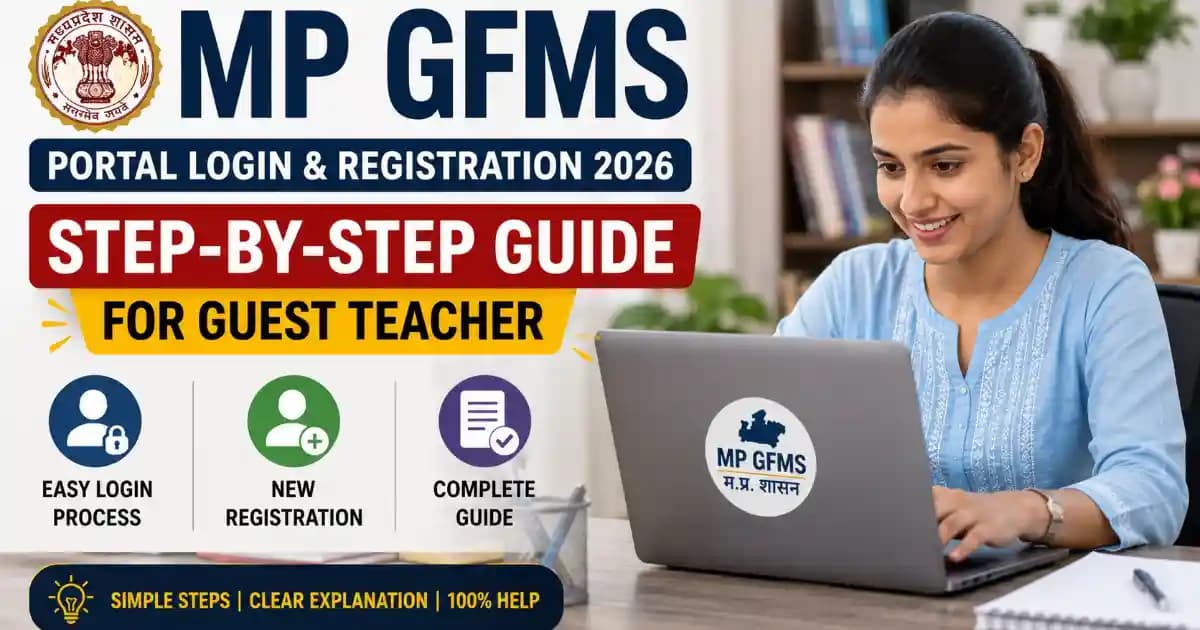
Complete step-by-step guide for How to MP GFMS Portal login and new registration for Guest Teacher recruitment 2026. Documents, process, and common error fixes included.
MP GFMS Portal registration is mandatory for every candidate who wants to work as a Guest Teacher (Atithi Shikshak) in Madhya Pradesh government schools for session 2026–27 — without a valid GFMS profile and Sankul-level verification, your name will not appear in any school's merit list. This guide walks you through every step of the new registration and login process on the Education Portal 3.0 at gfms.educationportal3.in, with exact button names, field instructions, and fixes for common errors you will face on mobile.
What is the MP GFMS Portal – Quick Overview
GFMS stands for Guest Faculty Management System. It is the official online platform run by the Madhya Pradesh School Education Department to manage all Guest Teacher (Atithi Shikshak) recruitment for Classes 1 to 12 (Varg 1, 2, and 3) in government schools across the state. The current version — Education Portal 3.0 — replaced the older gfms.mp.gov.in portal. All new registrations, profile updates, document uploads, and merit-list generation now happen exclusively at gfms.educationportal3.in. There is no application fee for any category.
MP GFMS Registration 2026 – Documents & Things You Need First
| Item | Specification | Notes |
|---|---|---|
| Samagra ID | 8-digit individual Samagra ID | Family Samagra ID (9 digits) will not work. Verify at samagra.gov.in before starting. |
| Aadhaar card | Original 12-digit Aadhaar number | Mobile number must be linked to Aadhaar for e-KYC OTP. Verify at uidai.gov.in if unsure. |
| Mobile number | Active number linked to Aadhaar | OTP will be sent to this number during e-KYC. Keep the phone in hand. |
| Class 10 marksheet | Original or scanned copy | Used for name and date of birth verification. Enter name exactly as printed. |
| Graduation degree / marksheet | Scanned JPG or PDF | Bachelor's degree from a recognized university is mandatory. |
| B.Ed. / D.El.Ed. certificate | Scanned copy | Professional teaching qualification required for all Varg (1, 2, 3). |
| MP TET scorecard | Scanned copy | MP Teacher Eligibility Test (TET) clearance is required. Add scorecard for subject eligibility. |
| Experience certificate | Issued by school / competent authority | Previous Guest Teacher experience adds priority points in merit. Scan and keep ready. |
| Passport-size photo | JPG format, white background, under 50 KB, minimum 200×200 px | Use a studio photo or scan. Do not use a phone selfie directly. Compress at tinypng.com if needed. |
| Signature | JPG format, white background, under 30 KB | Sign on white paper, photograph or scan. Crop to show only the signature. |
Source: Official MP GFMS notification dated 29 April 2026 (gfms.educationportal3.in). Data verified as of May 2026.
MP GFMS Portal New Registration 2026 – Step-by-Step Process
- Open the Official GFMS Portal (Education Portal 3.0): On your phone or desktop browser, go to gfms.educationportal3.in. Do not use the old gfms.mp.gov.in portal — all 2026–27 registrations are on the new Education Portal 3.0 only. If the page is slow to load, try at off-peak hours (before 9 AM or after 10 PM) as server traffic is high during application season.
- Click "नवीन पंजीयन" (New Registration): On the homepage, look for the "नवीन पंजीयन एवं जानकारी का अद्यतन" link in the "Latest Updates" section (the notice dated 29/04/2026) or find the "New Applicant" button on the login page. Click it — this opens the Samagra-based registration form.
- Enter Your Mobile Number and Get OTP: Type your active 10-digit mobile number in the field shown. Click "Send OTP" or "OTP भेजें". You will receive a 6-digit OTP on your phone within 60 seconds. If no OTP arrives in 2 minutes, click "Resend OTP" once. Enter the OTP in the verification box. This number will be your primary contact for all GFMS communications — use a number you use daily.
- Enter Your Samagra ID: After OTP verification, a field will appear asking for your Samagra ID. Enter your 8-digit individual Samagra ID (not the 9-digit family ID). The portal will auto-fetch your name, date of birth, and address from the Samagra database. Check that the details shown match your Class 10 documents. If details are wrong, update them at samagra.gov.in first, then return.
- Complete e-KYC via Aadhaar OTP: Click the "Samagra eKYC" or "Aadhaar KYC" button. Enter your 12-digit Aadhaar number and click "Get OTP". An OTP will be sent to the mobile number linked with your Aadhaar (this may be a different number than the one you registered with). Enter the OTP and click "Verify" to complete e-KYC. This step is mandatory and cannot be skipped.
- Note Your New User ID and Password: After successful e-KYC, the portal will display your GFMS User ID and a system-generated password on screen. These will also be sent to your registered mobile number via SMS. Take a screenshot immediately and save both in a safe place — you will need them to log in and update your profile.
- Log In and Fill Personal Details: Go back to the portal homepage. Enter your User ID, password, and the captcha code shown, then click "Login". Inside your profile, go to the "Personal Details" section. Confirm your name (as per Class 10 certificate), date of birth (DD/MM/YYYY format), gender, category (General/OBC/SC/ST), and address. Save the section before moving to the next.
- Fill Educational Qualifications: Go to the "Educational Details" section. Enter details for your Bachelor's degree (subject, university, year of passing, percentage), B.Ed./D.El.Ed. (institution, year, roll number), and MP TET (exam name, roll number, marks, pass year). If you hold a Post Graduate (PG) degree relevant to your teaching subject, add that too — it improves your subject eligibility for higher Varg positions. Save each sub-section separately.
- Fill Professional / Experience Details: Go to the "Professional Details" or "Experience" section. Enter all previous Guest Teacher stints — school name, district, subject, Varg, and period of service. Upload your experience certificate(s) for each entry. Previous experience adds priority weight in the merit list, so do not skip this step even if the experience was just one year.
- Upload Your Photo and Signature: Go to the "Upload Documents" section. Upload your passport-size photo (JPG, white background, under 50 KB). Then upload your signature scan (JPG, white background, under 30 KB). If your photo file is too large, compress it free at tinypng.com before uploading. The portal will show a preview — check that the photo is clear and not blurry before saving.
- Upload Supporting Documents: Still in the upload section, attach scanned copies of your Class 10 marksheet, graduation degree, B.Ed./D.El.Ed. certificate, MP TET scorecard, and any experience certificates. Accepted format is usually JPG or PDF under the size limit shown on each field. Upload one document at a time. Do not upload a single combined PDF for all documents unless the portal specifically allows it.
- Review All Sections and Lock / Submit Profile: Before locking, go through each section once — Personal, Educational, Professional, and Documents — to confirm all details are correct. Once you click "Profile Lock" or "Submit for Verification", further edits may not be possible without a helpdesk request. After locking, the profile is sent to your area's Sankul Principal for verification. You will receive an SMS confirmation on your registered mobile.
Updated May 2026
MP GFMS Portal 2026 – Common Problems & Solutions
These are the problems candidates most commonly face during GFMS registration and login. Each problem below has a confirmed fix — check the one you are facing.
| Problem | Likely Cause | Fix |
|---|---|---|
| OTP not received on mobile during registration | Network congestion or DND active on number | Wait 2 minutes and click "Resend OTP." If still not received, check if DND is enabled — call your telecom's customer care to temporarily suspend DND. Jio/Vi users may face 5–10 minute delays during peak hours. If mobile linked to Aadhaar is different, ensure that second phone is also in hand for the e-KYC step. |
| Samagra ID not accepted / "ID not found" error | Using family Samagra ID instead of individual ID, or Samagra not updated | Your individual Samagra ID is 8 digits (not the 9-digit family ID). Verify your correct individual ID at samagra.gov.in. If your name or date of birth on Samagra does not match your Class 10 certificate, update Samagra first, wait 24 hours for the database to sync, then retry registration. |
| e-KYC failing — "Aadhaar OTP not matching" | OTP expired (30-second window) or wrong number entered | Aadhaar OTPs expire in 30 seconds. Enter the OTP immediately after it arrives — do not wait. If it fails, click "Get OTP" again to receive a fresh one. If the OTP is going to a number you no longer use, update the mobile number linked to your Aadhaar at a nearby Aadhaar enrolment centre before proceeding. |
| Photo upload failing / "file size error" | Photo file size above portal limit or wrong format (PNG instead of JPG) | Convert your photo to JPG format (not PNG). Compress it to under 50 KB at tinypng.com (free, no login needed). Minimum photo size is 200×200 pixels. Do not use a phone selfie directly — use a scanned studio photo for best results. Check format and size before re-uploading. |
| Forgot User ID or Password after registration | User ID/password not saved after first registration | Your User ID was sent to your registered mobile number via SMS after registration. Search your SMS inbox for the GFMS message. For password reset, click "Forgot Password" on the portal login page, enter your registered mobile number, and get an OTP to set a new password. |
| Profile showing "Not Verified" even after submission | Sankul Principal has not yet completed verification | School-level (Sankul) verification runs until 11 May 2026. Your profile will show "Pending Verification" until the Sankul Principal approves it. If it still shows unverified after 11 May 2026, contact your nearest Sankul school directly or reach the District Education Office (DEO) for follow-up. |
| Duplicate GFMS ID / "already registered" error | You registered in a previous year with a different mobile or Samagra ID | Use the Merge Request option available on the portal between 12 May and 22 May 2026 to combine duplicate IDs at the district or directorate level. Do not create another fresh registration — it will be rejected during verification. |
Problems and fixes verified against GFMS portal official notices and candidate-reported issues. Last checked: May 2026.
After GFMS Registration – What Happens Next?
Once you submit and lock your profile, it goes to the Sankul Principal (cluster school head) for document verification. The Sankul Principal will verify your uploaded documents against your filled details between 04 May and 11 May 2026. After verification, your profile becomes eligible for inclusion in the school-wise merit list for Guest Teacher allotment.
After verification, the MP School Education Department generates vacancy-wise merit lists based on your qualifications, MP TET status, and previous experience. School allotment is done digitally — you do not need to visit any office. You will receive an SMS alert on your registered mobile when allotment is done.
MP GFMS Portal 2026 – Official Links
| Resource | Official Link |
|---|---|
| GFMS Portal 3.0 – Registration & Login | gfms.educationportal3.in |
| Official Notification (29 April 2026) | gfms.educationportal3.in (Latest Updates section) |
| Samagra ID Verification | samagra.gov.in |
| Aadhaar Mobile Linkage Status | uidai.gov.in |
| GFMS Portal Vacancy List (Public View) | gfms.educationportal3.in/TrnPublicVacancyInfo |
Updated May 2026
MP GFMS Portal Registration 2026 – Frequently Asked Questions
Is GFMS portal registration free for all candidates? +
Yes. MP GFMS registration is completely free for all candidates — General, OBC, SC, ST, and PwD. There is no application fee or processing charge for any category for the 2026–27 session. Do not pay anyone claiming to charge a fee for GFMS registration.
Is GFMS registration mandatory for every MP government school application, or only for 2026? +
GFMS registration is mandatory for every candidate who wants to be considered for Guest Teacher posting in any MP government school. The portal has been in use for multiple sessions. Your GFMS profile, once created and verified, carries forward — but you must update and re-verify it every year during the designated window (currently 02–11 May 2026 for session 2026–27).
My OTP is not coming on mobile — what should I do? +
First, wait 2 minutes — portal OTPs sometimes delay during peak hours. Then click "Resend OTP" once. Check if DND (Do Not Disturb) is active on your number — DND blocks promotional and transactional SMS on some networks. Jio and Vi users may face 5–10 minute delays; wait before retrying. If OTP still does not arrive, try from a different browser or contact your network provider to confirm SMS delivery is working.
What if I already registered in a previous year — do I register again? +
No. If you registered in a previous year, do not create a new account. Log in with your existing User ID and password, then update your profile with any new qualifications, experience, or document changes during the 02–11 May 2026 window. If you have two separate GFMS IDs from different years, use the Merge Request option available between 12–22 May 2026 to combine them into one active profile.
I forgot my GFMS User ID and password — how do I recover them? +
Your User ID was sent to your registered mobile number as an SMS when you first registered. Search your inbox for a message from GFMS or Education Portal MP. To reset your password, go to gfms.educationportal3.in, click "Forgot Password" on the login page, enter your registered mobile number, and follow the OTP-based reset process to create a new password.
Can I change my mobile number after GFMS registration? +
Yes, but only during the designated window. For session 2026–27, mobile number change requests can be submitted between 12 May and 22 May 2026 through the portal. Outside this window, you cannot change your registered number on your own — you would need to contact the district-level GFMS nodal officer for assistance.
What is the last date for new registration on the GFMS portal for 2026? +
The new registration and profile update window for session 2026–27 is open from 02 May 2026 to 11 May 2026. School-level (Sankul) verification of submitted profiles runs from 04 May to 11 May 2026. Do not wait until the last day — portal traffic is very high on the final day and you may face delays.
Is MP TET mandatory for GFMS Guest Teacher registration? +
Yes. MP Teacher Eligibility Test (MP TET) clearance is required for all Varg (1, 2, and 3) Guest Teacher positions. You must enter your TET roll number, marks, and year of passing in the Educational Details section. Candidates without TET may still register and fill other details, but TET qualification is required for subject-specific school allotment.
How long does Sankul Principal verification take after I lock my profile? +
Sankul-level verification runs officially from 04 May to 11 May 2026. Most verifications are completed within 2–4 working days of profile submission. You will receive an SMS on your registered mobile once verification is done. If your profile is still showing "Pending" after 11 May, contact your nearest Sankul school or district nodal officer.
Where can I find the GFMS helpdesk contact for portal problems? +
The official helpdesk contact details are listed in the "Help" or "Contact Us" section of the portal at gfms.educationportal3.in. District and division-level nodal officers have been designated for Guest Teacher portal support — their details were published in the official order dated 12 March 2026 available on the portal's Latest Updates section.