
Quick Summary
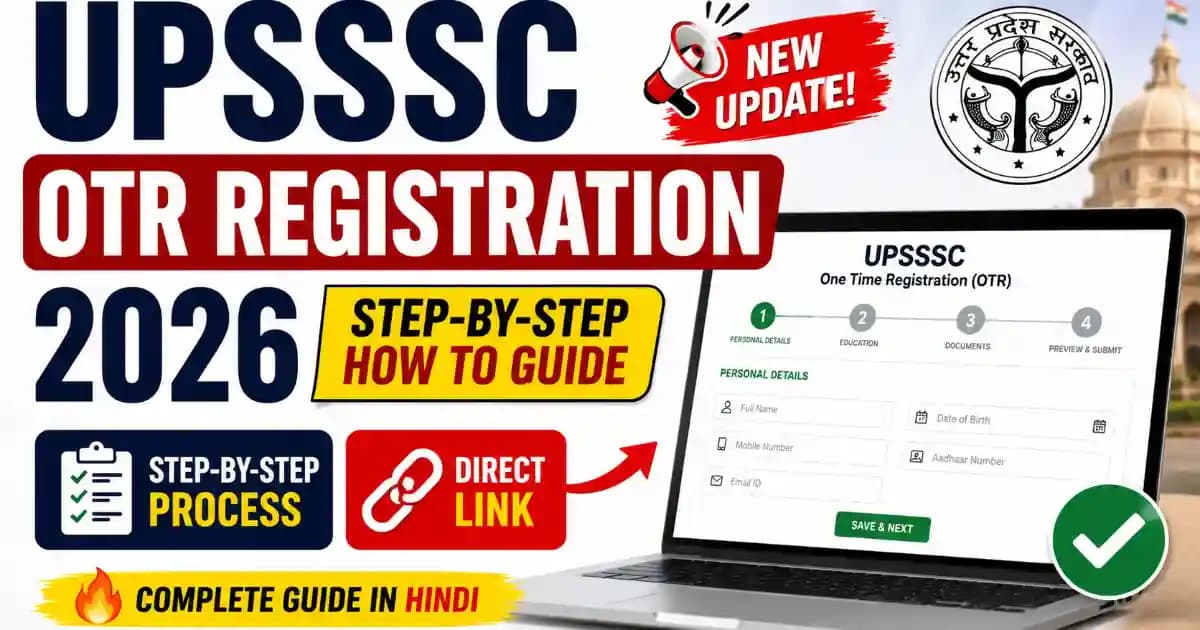
Complete UPSSSC OTR Registration 2026 process – documents, photo/signature specs, step-by-step form fill, common errors and direct official link.
Uttar Pradesh Subordinate Services Selection Commission (UPSSSC) is the state government body responsible for conducting the Preliminary Eligibility Test (PET) and subsequent Main Examinations for recruitment to Group C and Group D posts across various Uttar Pradesh government departments. Its official recruitment portal is upsssc.gov.in.
UPSSSC PET 2026 Notification Out – OTR Registration Mandatory
The Uttar Pradesh Subordinate Services Selection Commission (UPSSSC) has officially released the PET (Preliminary Eligibility Test) 2026 Notification, opening the gateway for lakhs of candidates aspiring for Group C and Group D posts in Uttar Pradesh. Before proceeding to fill the PET 2026 application form, candidates must note that UPSSSC OTR (One Time Registration) is mandatory — without a valid OTR number generated on the portal, the application form cannot be submitted. This guide covers the complete OTR registration process in simple steps, along with the exact fields, buttons, and document specifications you will encounter on the official portal.
What is UPSSSC OTR – Quick Explanation
OTR stands for One Time Registration. It is a single digital profile where you enter your personal, educational, and category details only once on the UPSSSC portal. Once your OTR number is generated, it is reused to auto-fill every future UPSSSC recruitment form — you no longer type the same details again for each new vacancy. OTR itself is not an application for any specific post — you still submit a separate form for every individual UPSSSC recruitment using your OTR number.
UPSSSC OTR 2026 – Documents & Details You Need First
Keep the following ready in scanned/digital form before you open the registration form — the session can time out if you leave midway to search for a document.
| Item | Specification | Notes |
|---|---|---|
| Active mobile number | Should not be shared/used on another candidate's profile | Used for OTP verification and all future alerts |
| Active email ID | Personal, regularly checked | Your OTR number and confirmation are sent here |
| High School (Class 10) certificate | Name, date of birth, roll number as printed | Name/DOB must match this document exactly |
| Category certificate | SC/ST/OBC/EWS, if applicable | Only needed if claiming reserved category benefit |
| Domicile/residence proof | UP-issued document | Required to confirm home district and state |
| Photograph | JPEG/JPG, 50 KB – 100 KB, taken within the last 6 months | Recent colour photo, clear face, plain background |
| Signature | JPEG/JPG, 30 KB – 50 KB | Sign in running hand — CAPITAL letters in English are rejected; many candidates also write their name in Hindi below the signature |
Source: UPSSSC official OTR notice, upsssc.gov.in. Data verified as of 3 August 2026.
UPSSSC OTR 2026 – Step-by-Step Registration Process
- Open the Official UPSSSC Website: Go to upsssc.gov.in on any browser. On the homepage, look for the "One Time Registration (OTR)" link, usually shown under the latest notices or the applicant section. Click it to open the OTR page.
- Choose Your Registration Type: The portal will ask "Do you have a PET Registration Number?" Select "Yes" if you appeared in a previous PET and want to link that record, or "No" to start a completely fresh OTR profile.
- Click "New Registration": If you chose fresh registration, click the "New Registration" button. This opens the OTR application form, which is divided into personal details, address, education, and document upload sections.
- Verify Mobile Number and Email via OTP: Enter your mobile number and email ID, then click "Send OTP" next to each field. Enter the 6-digit codes received on both. If an OTP does not arrive within 2 minutes, use the "Resend OTP" option rather than refreshing the page.
- Fill Personal Details: Enter your full name, father's name, mother's name, date of birth, gender, category, nationality, and home district exactly as printed on your Class 10 certificate — not as per Aadhaar, if the two differ.
- Enter Address and Educational Qualification: Fill in your permanent and correspondence address, then enter your High School (Class 10) board, roll number, year of passing, and marks as recorded on the certificate.
- Upload Photograph and Signature: Upload your photo (JPEG/JPG, 50–100 KB) and signature (JPEG/JPG, 30–50 KB) in the document upload section. Use a plain white or light background photo and avoid old or blurry images — mismatched file sizes are the most common reason uploads get rejected.
- Preview and Submit: Review every field on the preview/summary screen carefully — check spelling of your name, date of birth, and category before clicking "Submit Registration". Core details are generally locked once your OTR number is generated, so this is your last chance to correct a typing error.
- Save Your OTR Number: Your unique OTR number will appear on screen and will also be sent to your registered mobile and email. Take a screenshot and note it down separately — you will need this number for every future UPSSSC application, including PET.
Updated August 2026
A short walkthrough can help if you prefer to watch each screen before you start:
Video: "UPSSSC OTR Kaise kare 2026 – Step by Step Process" (Rojgar LAB), published shortly after the OTR portal went live in July 2026. Linked for reference — always cross-check the on-screen process against the official portal, since UPSSSC can update field names at any time.
UPSSSC OTR 2026 – Common Problems & Solutions
These are the problems candidates most commonly face during UPSSSC OTR registration. Each problem below has a confirmed fix — check the one you are facing.
| Problem | Likely Cause | Fix |
|---|---|---|
| OTP not received on mobile or email | Network delay, DND active, or wrong number/email typed | Wait 2 minutes and click Resend OTP. Check your email spam folder. Confirm the mobile number is correct and not registered on DND for transactional SMS. |
| Photo or signature upload rejected | File size outside the 50–100 KB (photo) or 30–50 KB (signature) range | Compress the image using any free online photo-resize tool until it falls in the required KB range, then re-upload in JPEG/JPG format. |
| Signature rejected | Signed in English CAPITAL LETTERS | Sign in your normal running hand — mixed case or cursive. Many candidates also write their name in Hindi below the signature for clarity. |
| Page not loading or blank screen | Heavy server traffic during peak hours | Try again early morning or late evening. Clear browser cache, or switch from mobile browser to a desktop browser if the form appears broken. |
| PET registration number not recognised | Number entered with extra spaces, or belongs to a different exam cycle | Type the number manually instead of copy-pasting. If it still fails, choose "No" and complete a fresh OTR instead of retrying the PET-linked option repeatedly. |
| Forgot OTR number or password after registration | Confirmation SMS/email lost or deleted | Use the recovery option on the OTR login page with your registered mobile number or email to retrieve your OTR number. |
Problems and fixes compiled from common candidate-reported issues on UPSSSC and comparable state-PSC OTR portals. Last checked: 3 August 2026.
After UPSSSC OTR 2026 – What Happens Next
Completing OTR does not mean you have applied for any exam. When UPSSSC releases a new PET or Main Examination notification, you will log in on the recruitment application page using your OTR number, and your saved personal, educational, and category details will auto-fill into the new form. You will then only need to select the specific post, upload any post-specific documents, and pay the application fee for that particular recruitment.
UPSSSC OTR 2026 – Official Links
| Resource | Official Link |
|---|---|
| UPSSSC Official Website / OTR Portal | upsssc.gov.in |
| Report a Problem / Helpdesk | upsssc.gov.in – Problem Report |
Updated August 2026
UPSSSC OTR 2026 – Frequently Asked Questions
Is UPSSSC OTR registration free of cost?+
Yes, creating your UPSSSC OTR profile is completely free for candidates of every category. You only pay a fee later when you submit a specific recruitment application, such as PET, and that fee amount is set separately in each notification.
Is OTR mandatory for every UPSSSC exam?+
Yes. From 2025 onwards, UPSSSC requires a valid OTR number to apply for any Preliminary Eligibility Test (PET) or Main Examination it conducts. Without completing OTR first, the application form for a specific vacancy will not open.
Can I use my PET 2025 registration number to complete OTR?+
Yes. On the OTR page, select "Yes" when asked if you have a PET registration number, then enter that number along with your date of birth to pull in your existing details instead of typing everything again.
Does completing OTR mean I have applied for UPSSSC PET 2026?+
No. OTR only creates your candidate profile with an OTR number. You still need to log in separately and submit the actual application form, along with the fee, once UPSSSC releases the PET 2026 or any other recruitment notification.
Can I edit my details after my OTR number is generated?+
Core details like name, date of birth, and category are generally locked once your OTR number is generated. Review every field carefully on the preview screen before final submission, since correction options after that point are limited on the official portal.
What should I do if my OTP is not coming during OTR registration?+
First wait 2 minutes and use the Resend OTP option — server load can delay delivery. Check your email spam folder if the OTP was sent there, and confirm your mobile number is entered correctly without any typing mistake.
What are the photo and signature specifications for UPSSSC OTR?+
Your photograph must be a recent JPEG/JPG file, taken within the last 6 months, sized between 50 KB and 100 KB. Your signature must also be JPEG/JPG, sized between 30 KB and 50 KB, signed in your normal handwriting — not in English capital letters.
Is there a last date to complete UPSSSC OTR registration?+
No fixed closing date has been announced for OTR registration itself. However, it is best to complete it well before a new PET or Main Examination notification is released, since the portal sees heavy traffic right after any announcement.
Does UPSSSC OTR work the same way on mobile as on a computer?+
Yes, the process is identical on mobile and desktop. On a phone, make sure you upload your photo and signature files directly from your gallery, and switch to desktop-site mode in your browser if any field appears cut off.
Who do I contact if my UPSSSC OTR problem is not resolved?+
You can reach the UPSSSC helpdesk at [email protected] or call 0522-2720814, or use the "Report a Problem" link on the official website. Keep your OTR number and a screenshot of the error ready when you contact them.